
Chapter Text
Welcome to this tutorial!! If you're new to CSS, here are some links to refer to!!
- Ao3 Coding References by am / amphibianauthor
- Tutorial: Styling works
- CSS GUIDES by Goddess_of_the_arena
- A Complete Guide to 'Limited HTML' on AO3 by CodenameCarrot
Here are some more references on how to target specific elements in a work!! They cover a lot of things I haven't in this guide, so check them out for sure!!
- P̶e̶r̶s̶o̶n̶a̶l̶ Experiment with HTML and CSS by MohnblumenKind
- Targeting specific AO3 work sections (not site) with CSS effects by Charles_Rockafellor
- 𝗖𝗼𝗱𝗶𝗻𝗴 𝗘𝗻𝗰𝘆𝗰𝗹𝗼𝗽𝗲𝗱𝗶𝗮 by Anonymous
I'll be using red and magenta as the text colors for demonstration purposes. Remember that you can format it however you want. This tutorial is just for demonstrating how to target different elements in your work using CSS selectors.
Copy and paste the code into the 'CSS' field, and replace 'color:red;' or any other sample text I've provided with your own formatting.
Things we'll be covering in this chapter:
Let's begin!
Work Title
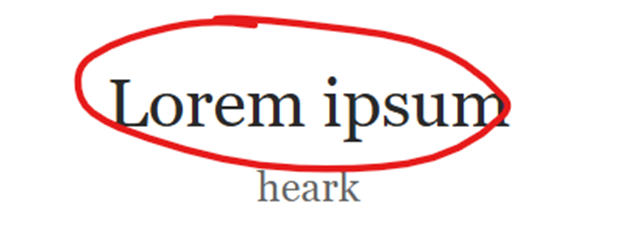
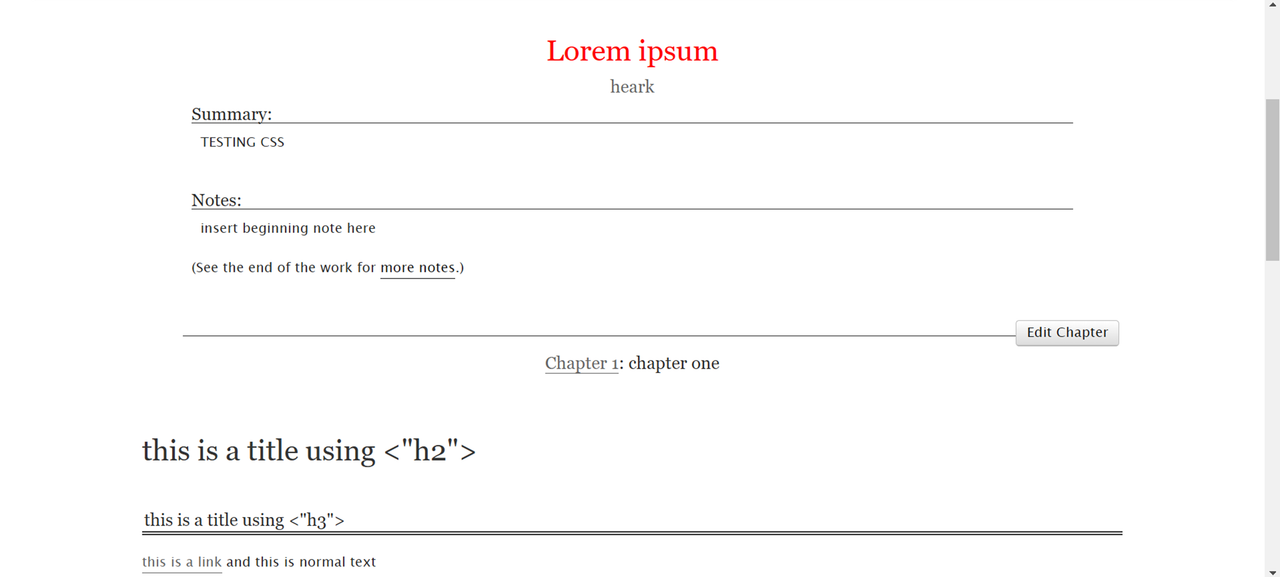
Method 1:
#workskin h2.title {
color: red;
}
Method 2:
#workskin h2.title.heading {
color: red;
}
Result:
Method 3:
#workskin h2 {
color: red;
}
Result:
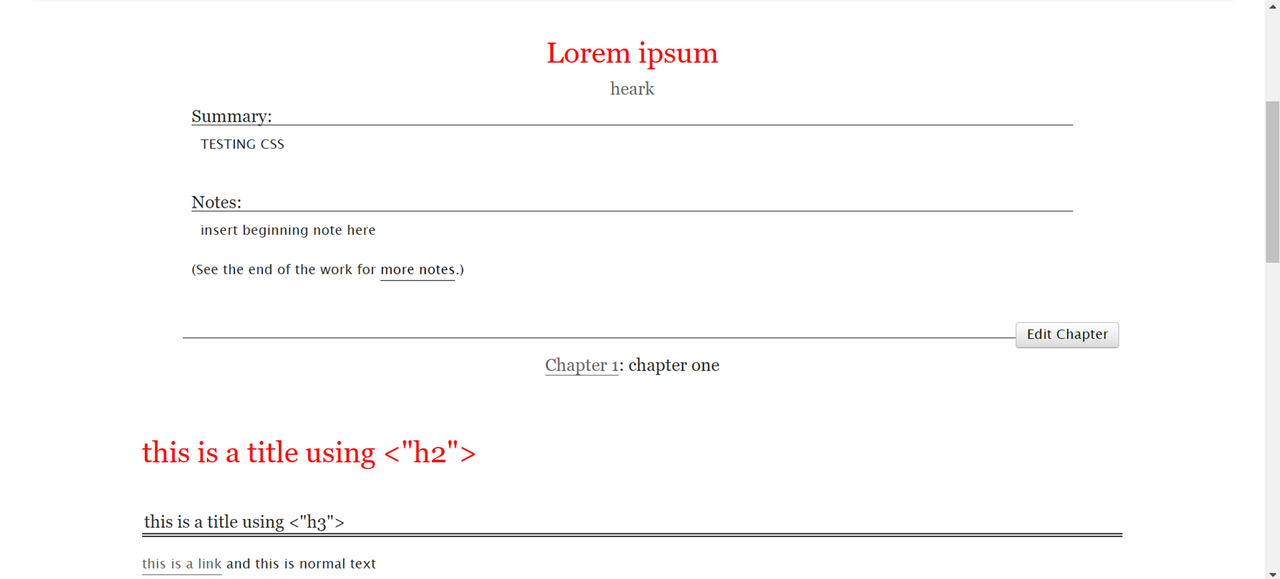
This works in the same way as Method 1 and 2. However, if you have any other text using the <h2> tag (“this is a title” in the example above), that will get styled as well.

Next chapter: Styling the Author Name!